
Added Shift+Enter support for Windows Terminal
Public

Added Shift+Enter support for Windows Terminal
Agent
Pi
Model
Claude Opus 4.5 (latest)
Started
Jan 16, 11:10 PM
Messages32
Downloads0
Reviewed README and identified limitation with Shift+Enter.
UnderstandResearched Windows Terminal sendInput feature.
UnderstandCreated workaround using sendInput with Kitty protocol escape sequence.
BuildUpdated README with Windows Terminal configuration.
EditCommitted and pushed the change.
Verify
in windows terminal using git bash or any other shell really, shift + enter is not recognized by our shit.
could any of this help? can use brave search if you want to do more research on how we can configure shift + enter in windows terminal. read @packages/coding-agent/README.md on setups for other terminals
The user is asking about Shift+Enter support in Windows Terminal with Git Bash or other shells. They want me to look at the coding-agent README to see how other terminals are configured, and potentially research how to configure Shift+Enter in Windows Terminal.
Let me start by reading the README.md file.
The README shows that Windows Terminal is explicitly documented as not supporting the Kitty keyboard protocol:
Windows Terminal: Does not support the Kitty keyboard protocol. Shift+Enter cannot be distinguished from Enter. Use Ctrl+Enter for multi-line input instead. All other keybindings work correctly.
So the current workaround is to use Ctrl+Enter instead of Shift+Enter on Windows Terminal.
The user is asking if there's a way to configure Windows Terminal to support Shift+Enter. Let me search for more information using Brave Search to see if there are any workarounds or configuration options.
The README already documents this limitation:
Windows Terminal: Does not support the Kitty keyboard protocol. Shift+Enter cannot be distinguished from Enter. Use Ctrl+Enter for multi-line input instead. All other keybindings work correctly.
Let me search for potential workarounds:
>~/.pi/agent/skills/pi-skills/brave-search/search.js "windows terminal shift+enter keybinding custom escape sequence sendInput" --content 2>/dev/null | head -200--- Result 1 ---
Title: windows subsystem for linux - How to send ctrl+shift+6 as ansi escape sequence? - Stack Overflow
Link: https://stackoverflow.com/questions/67633333/how-to-send-ctrlshift6-as-ansi-escape-sequence
Snippet: If Windows Terminal assigns that to a different code, you might open a bug report, because its developers intend to imitate xterm. ... Sign up to request clarification or add additional context in comments. ... I´ve been banging my head against this for a day, thank you! It worked perfectly, for anyone else wondering my keybind looks like this now: { "command": { "action": "sendInput", "input": "\u001e" }, "keys": "f5" } 2021-05-23T09:15:02.273Z+00:00
Content:
Trying to find the ANSI escape sequence for sending the keys ctrl+shift+6 in the format `\u001b`...
I recently tried switching over to only using Windows Terminal instead of SecureCRT/Putty but i'm having issues terminating Cisco telnet/console sessions that uses ctrl+shift+6 and then x.
The terminal does not seem to recognize this or isn't forwarding it the same way as SecureCRT/Putty because nothing happens. The session is established over term VTY100 if that has any use, and the SSH-session is initiated from a Zsh-shell in a Redhat7 jumphost, the base connection comes from my Ubuntu WSL2-box.
I think I found a possible workaround as Windows Terminals allows keybinding an ansi escape sequence, but I'm unable to figure out what the sequence would look like?
> Send arbitrary text input to the shell. As an example the input `"text\n"` will write "text" followed by a newline to the shell.
>
> ANSI escape sequences may be used, but escape codes like `\x1b` must be written as `\u001b`. For instance `"\u001b[A"` will behave as if the up arrow button had been pressed.
By default this exact keybinding is used by Windows Terminal to open a new tab but I removed that.
--- Result 2 ---
Title: Custom actions and keybindings in Windows Terminal
Link: https://learn.microsoft.com/en-us/windows/terminal/customize-settings/actions
Snippet: ANSI escape sequences may be used, but <strong>escape codes like \x1b must be written as \u001b</strong>. For instance "\u001b[A" will behave as if the up arrow button had been pressed. ... This command is not currently bound in the default settings.
Content:
You can create custom actions inside Windows Terminal that give you control of how you interact with the terminal. These actions will automatically be added to the command palette.
## Action formats
Actions can be structured in the following formats:
### Commands without arguments
```
{ "command": "commandName", "id": "User.MyCommand" }
```
For example, this default setting uses the shortcut key Alt+F4 to close the terminal window:
```
{ "command": "closeWindow", "id": "User.MyCloseWindow" }
```
### Commands with arguments
```
{ "command": { "action": "commandName", "argument": "value" }, "id": "User.MyCommand" }
```
For example, this default setting uses the shortcut key Ctrl+Shift+1 to open a new tab in the terminal based on whichever profile is listed first in your dropdown menu (typically this will open the PowerShell profile):
```
{ "command": { "action": "newTab", "index": 0 }, "id": "User.MyNewTabAction" }
```
### Commands with command line arguments
```
{ "command": { "action": "wt", "commandline": "value" }, "keys": "modifiers+key" }
```
For example, this default setting uses the shortcut key Ctrl+Shift+O to use [`wt`](https://learn.microsoft.com/en-us/windows/terminal/command-line-arguments) to open a new PowerShell tab with additional panes for Command Prompt and Ubuntu:
```
{
"command":
{
"action": "wt",
"commandline": "new-tab pwsh.exe ; split-pane -p \"Command Prompt\" -d C:\\ ; split-pane -p \"Ubuntu\" -H"
},
"keys": "ctrl+shift+o"
}
```
* * *
## Action properties
Actions are stored in the `actions` array and can be constructed using the following properties.
### Command
This is the command executed when the associated keys are pressed.
**Property name:** `command`
**Necessity:** Required
**Accepts:** String
### Action
This adds additional functionality to certain commands.
**Property name:** `action`
**Necessity:** Optional
**Accepts:** String
### Name
This sets the name that will appear in the command palette. If one isn't provided, the terminal will attempt to automatically generate a name.
**Property name:** `name`
**Necessity**: Optional
**Accepts:** String
### Icon
This sets the icon that displays within the command palette.
**Property name:** `icon`
**Necessity:** Optional
**Accepts:** File location as a string, or an emoji
Note
As of Windows Terminal 1.24, `icon` may refer to content adjacent to the `settings.json` file.
### ID
This sets the id of this action. If one isn't provided, the terminal will generate an ID for this action. The ID is used to refer to this action when creating keybindings.
**Property name:** `id`
**Necessity**: Optional
**Accepts:** String
* * *
## Keybindings
Actions can be assigned keybindings by referring to them with their unique ID. For example, here is a possible `keybindings` array that assigns Alt+F4, Ctrl+Shift+1 and Ctrl+Shift+o to the actions defined above. Multiple keybinding entries may be created for the same action.
```
"keybindings": [
{ "keys": "alt+f4", "id": "User.MyCloseWindow" },
{ "keys": "ctrl+shift+1", "id": "User.MyNewTabAction" },
{ "keys": "ctrl+shift+o", "id": "User.MyCoolSetup"}
]
```
## Keybinding properties
Keybindings are stored in the `keybindings` array and are constructed using the following properties.
### Keys
This defines the key combinations used to call the command. Keys can have any number of modifiers with one key. Accepted modifiers and keys are listed [below](#accepted-modifiers).
If the action does not have keys, it will appear in the command palette but cannot be invoked with the keyboard.
**Property name:** `keys`
**Necessity:** Required
**Accepts:** String or array\[string\]
### ID
This is the ID of the action to be invoked when this keybinding is pressed.
**Property name:** `id`
**Necessity:** Required
**Accepts:** String
* * *
### Accepted Modifiers
`ctrl+`, `shift+`, `alt+`, `win+`
Note
While the `Windows` key is supported as a modifier, the system reserves most Win+<key> key bindings. If the OS has reserved that key binding, the terminal will never receive that binding.
### Modifier keys
| Type | Keys |
| --- | --- |
| Function and alphanumeric keys | `f1-f24`, `a-z`, `0-9` |
| Symbols | `` ` ``, `plus`, `-`, `=`, `[`, `]`, `\`, `;`, `'`, `,`, `.`, `/` |
| Arrow keys | `down`, `left`, `right`, `up`, `pagedown`, `pageup`, `pgdn`, `pgup`, `end`, `home` |
| Action keys | `tab`, `enter`, `esc`, `escape`, `space`, `backspace`, `delete`, `insert`, `app`, `menu` |
| Numpad keys | `numpad_0-numpad_9`, `numpad0-numpad9`, `numpad_add`, `numpad_plus`, `numpad_decimal`, `numpad_period`, `numpad_divide`, `numpad_minus`, `numpad_subtract`, `numpad_multiply` |
| Browser keys | `browser_back`, `browser_forward`, `browser_refresh`, `browser_stop`, `browser_search`, `browser_favorites`, `browser_home` |
**Note:** `=` and `plus` are equivalents. The latter must not be confused with `numpad_plus`.
* * *
## Application-level commandsThis is helpful. Windows Terminal supports sendInput action that can send arbitrary ANSI escape sequences. Let me search specifically for how to configure Shift+Enter in Windows Terminal to send a custom escape sequence.
The Kitty keyboard protocol sends \x1b[13;2u for Shift+Enter. VS Code's config in the README shows exactly this:
{ "key": "shift+enter", "command": "workbench.action.terminal.sendSequence", "args": { "text": "\u001b[13;2u" }, "when": "terminalFocus"}So in Windows Terminal, we could potentially do:
{ "command": { "action": "sendInput", "input": "\u001b[13;2u" }, "keys": "shift+enter"}Let me verify this is the right approach.
This is promising. Windows Terminal supports sendInput with custom escape sequences. The Kitty protocol for Shift+Enter is \x1b[13;2u (which the VS Code config in our README already shows as \u001b[13;2u).
Let me search for confirmation this works:
>~/.pi/agent/skills/pi-skills/brave-search/search.js "windows terminal sendInput shift+enter keybinding settings.json" --content 2>/dev/null | head -200--- Result 1 ---
Title: Windows Terminal tips and tricks | Microsoft Learn
Link: https://learn.microsoft.com/en-us/windows/terminal/tips-and-tricks
Snippet: Windows Terminal gives you the ability to send input to your shell with a key binding. Use the following structure inside the "actions" array of your settings.json file. <strong>{ "command": {"action": "sendInput", "input": ""}, "keys": "" }</strong>
Content:
## On first launch
When you first install Windows Terminal, you see a Windows PowerShell prompt. Windows Terminal includes Windows PowerShell, Command Prompt, and Azure Cloud Shell profiles by default.
If you install any [Windows Subsystem for Linux (WSL)](https://learn.microsoft.com/en-us/windows/wsl) distributions, the terminal automatically creates profiles for those distributions. If you install additional WSL distributions after installing terminal, the profiles for those distributions automatically appear on your next terminal launch. These profiles use the Linux Tux image as their icon.
Note
You can change the icon of each WSL distribution if desired. Specific distribution icons don't come shipped inside the terminal but you can download and assign them using the terminal settings.
## View default settings
Windows Terminal comes with a large set of default settings, including [color schemes](https://learn.microsoft.com/en-us/windows/terminal/customize-settings/color-schemes) and [keyboard shortcuts](https://learn.microsoft.com/en-us/windows/terminal/customize-settings/actions) (now called "Custom actions"). To view the default settings file, hold Alt and select the Settings button inside the dropdown menu.
## Default profile settings
Windows Terminal enables you to apply a setting to every profile without having to duplicate the setting for each profile entry. Add a setting inside the "defaults" array inside the [profiles](https://learn.microsoft.com/en-us/windows/terminal/customize-settings/profile-general) object. Learn more about [General profile settings](https://learn.microsoft.com/en-us/windows/terminal/customize-settings/profile-general), [Appearance profile settings](https://learn.microsoft.com/en-us/windows/terminal/customize-settings/profile-appearance), and [Advanced profile settings](https://learn.microsoft.com/en-us/windows/terminal/customize-settings/profile-advanced).
```
"profiles":
{
"defaults":
{
// Put settings here that you want to apply to all profiles.
"fontFace": "Cascadia Code"
},
"list":
[]
}
```
## Rename a tab
You can rename a tab for that terminal session by right-clicking on a tab and selecting **Rename Tab**. Selecting this option in the context menu changes your tab title into a text field, where you can then edit the title. To set the tab title for that profile for every terminal instance, see the [Tab title tutorial](https://learn.microsoft.com/en-us/windows/terminal/tutorials/tab-title).
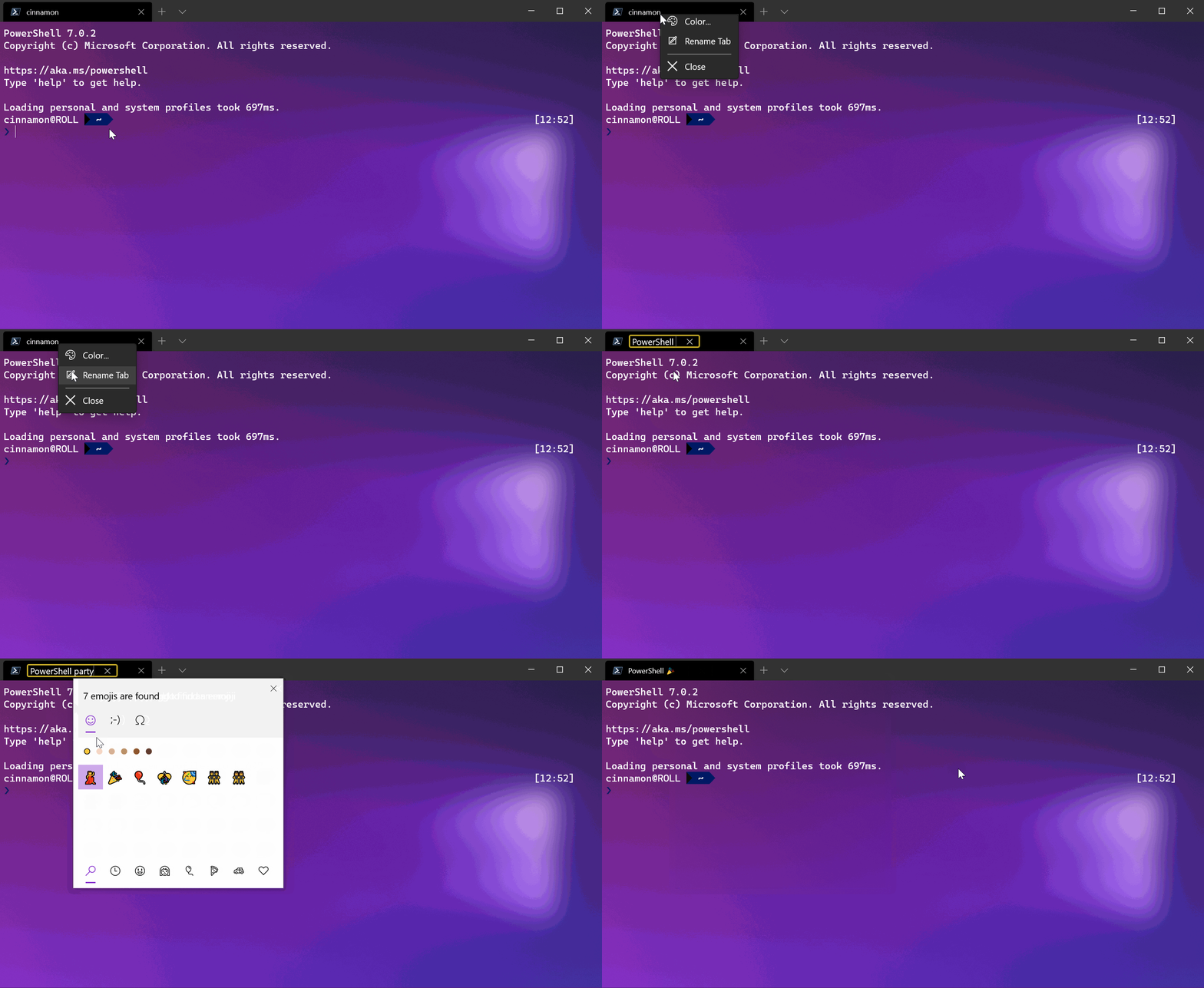
## Color a tab
To color a tab for a terminal session, right-click on the tab and select **Color**.... Choose a color from the predefined list or select **Custom...** to pick any color using the color picker or the RGB/HSV or hex fields.

Tip
Use the hex field to set your tab to the same color as your background color for a seamless look.
Set the `tabColor` as part of a profile. See [Profile - Appearance: Tab color](https://learn.microsoft.com/en-us/windows/terminal/customize-settings/profile-appearance#tab-color). For example:
```
{
"guid": "{1234abc-abcd-1234-12ab-1234abc}",
"name": "Windows PowerShell",
"background": "#012456",
"tabColor": "#012456",
},
```
You can't set the `tabColor` as part of a color scheme. Additionally, while you can [set the tab title from the commandline](https://learn.microsoft.com/en-us/windows/terminal/tutorials/tab-title) with escape sequences, you currently can't set the tab color in this way.
## Mouse interaction
You can interact with Windows Terminal in several ways by using a mouse.
### Zoom with the mouse
You can zoom the text window of Windows Terminal (making the text size larger or smaller) by holding Ctrl and scrolling. The zoom persists for that terminal session. To change your font size, see the [Profile - Appearance page](https://learn.microsoft.com/en-us/windows/terminal/customize-settings/profile-appearance#text).
### Adjust background opacity with the mouse
You can adjust the opacity of the background by holding Ctrl+Shift and scrolling. The opacity persists for that terminal session. To change your acrylic opacity for a profile, see the [Profile - Appearance page](https://learn.microsoft.com/en-us/windows/terminal/customize-settings/profile-appearance#transparency).
Note
In Windows Terminal version 1.12, changing the background opacity with the mouse wheel uses vintage-style opacity by default, unless you set `useAcrylic` to true in your settings. In earlier versions, the terminal always used acrylic for transparency.
### Open a hyperlink
You can open a hyperlink from inside Windows Terminal with your mouse by using Ctrl + click.
### Drag and drop file or folder to open
You can drag and drop a file or folder over the **New Tab** button to open your default profile with that file or folder
--- Result 2 ---
Title: Windows Terminal Actions | Microsoft Learn
Link: https://learn.microsoft.com/en-us/windows/terminal/customize-settings/actions
Snippet: As of Windows Terminal 1.24, icon may refer to content adjacent to the settings.json file. This sets the id of this action. If one isn't provided, the terminal will generate an ID for this action. The ID is used to refer to this action when creating keybindings. ... Actions can be assigned keybindings by referring to them with their unique ID. For example, here is a possible keybindings array that assigns Alt+F4, Ctrl+Shift+1 and Ctrl+Shift+o to the actions defined above.
Content:
You can create custom actions inside Windows Terminal that give you control of how you interact with the terminal. These actions will automatically be added to the command palette.
## Action formats
Actions can be structured in the following formats:
### Commands without arguments
```
{ "command": "commandName", "id": "User.MyCommand" }
```
For example, this default setting uses the shortcut key Alt+F4 to close the terminal window:
```
{ "command": "closeWindow", "id": "User.MyCloseWindow" }
```
### Commands with arguments
```
{ "command": { "action": "commandName", "argument": "value" }, "id": "User.MyCommand" }
```
For example, this default setting uses the shortcut key Ctrl+Shift+1 to open a new tab in the terminal based on whichever profile is listed first in your dropdown menu (typically this will open the PowerShell profile):
```
{ "command": { "action": "newTab", "index": 0 }, "id": "User.MyNewTabAction" }
```
### Commands with command line arguments
```
{ "command": { "action": "wt", "commandline": "value" }, "keys": "modifiers+key" }
```
For example, this default setting uses the shortcut key Ctrl+Shift+O to use [`wt`](https://learn.microsoft.com/en-us/windows/terminal/command-line-arguments) to open a new PowerShell tab with additional panes for Command Prompt and Ubuntu:
```
{
"command":
{
"action": "wt",
"commandline": "new-tab pwsh.exe ; split-pane -p \"Command Prompt\" -d C:\\ ; split-pane -p \"Ubuntu\" -H"
},
"keys": "ctrl+shift+o"
}
```
* * *
## Action properties
Actions are stored in the `actions` array and can be constructed using the following properties.
### Command
This is the command executed when the associated keys are pressed.
**Property name:** `command`
**Necessity:** Required
**Accepts:** String
### Action
This adds additional functionality to certain commands.
**Property name:** `action`
**Necessity:** Optional
**Accepts:** String
### Name
This sets the name that will appear in the command palette. If one isn't provided, the terminal will attempt to automatically generate a name.
**Property name:** `name`
**Necessity**: Optional
**Accepts:** String
### Icon
This sets the icon that displays within the command palette.
**Property name:** `icon`
**Necessity:** Optional
**Accepts:** File location as a string, or an emoji
Note
As of Windows Terminal 1.24, `icon` may refer to content adjacent to the `settings.json` file.
### ID
This sets the id of this action. If one isn't provided, the terminal will generate an ID for this action. The ID is used to refer to this action when creating keybindings.
**Property name:** `id`
**Necessity**: OptionalThis confirms Windows Terminal supports sendInput with custom escape sequences. The solution is to add a keybinding in Windows Terminal settings.json that sends the Kitty protocol escape sequence for Shift+Enter.
The Kitty keyboard protocol for Shift+Enter is:
\x1b[13;2u which in Windows Terminal JSON format is \u001b[13;2uThe user should add this to their Windows Terminal settings.json actions array:
{ "command": { "action": "sendInput", "input": "\u001b[13;2u" }, "keys": "shift+enter"}This should work! We should update the README with this information.
This can be fixed. Windows Terminal supports sendInput to send custom escape sequences. The Kitty protocol for Shift+Enter is \x1b[13;2u.
Solution for Windows Terminal users:
Add to Windows Terminal settings.json (open with Ctrl+Shift+, or Settings → Open JSON file):
{ "actions": [ { "command": { "action": "sendInput", "input": "\u001b[13;2u" }, "keys": "shift+enter" } ]}This sends the Kitty keyboard protocol escape sequence that pi expects. Should work with Git Bash, PowerShell, or any shell in Windows Terminal.
Want me to update the README to replace the "use Ctrl+Enter" workaround with this actual fix?
can you add that to the README.md?
The user wants me to update the README.md to add the Windows Terminal configuration for Shift+Enter. Let me read the relevant section first to make sure I have the exact text to edit.
I can see the Windows Terminal section. Let me edit it to add the sendInput configuration.
Successfully replaced text in /Users/badlogic/workspaces/pi-mono/packages/coding-agent/README.md.Done. Let me run the check to make sure everything is still valid.
>cd /Users/badlogic/workspaces/pi-mono && npm run check 2>&1> pi-monorepo@0.0.3 check
> biome check --write . && tsgo --noEmit && npm run check -w @mariozechner/pi-web-ui
Checked 406 files in 336ms. No fixes applied.
> @mariozechner/pi-web-ui@0.47.0 check
> biome check --write . && tsc --noEmit && cd example && biome check --write . && tsc --noEmit
Checked 73 files in 46ms. No fixes applied.
Checked 3 files in 8ms. No fixes applied.Everything checks out. The README has been updated with the Windows Terminal configuration for Shift+Enter.
Done. Updated the Windows Terminal section with the sendInput configuration that sends the Kitty protocol escape sequence for Shift+Enter.
cool, commit and push
The user wants me to commit and push the changes. I need to commit only the specific file I modified.
>cd /Users/badlogic/workspaces/pi-mono && git add packages/coding-agent/README.md && git commit -m "docs(coding-agent): add Windows Terminal Shift+Enter config" && git pushRunning formatting, linting, and type checking...
> pi-monorepo@0.0.3 check
> biome check --write . && tsgo --noEmit && npm run check -w @mariozechner/pi-web-ui
Checked 406 files in 382ms. No fixes applied.
> @mariozechner/pi-web-ui@0.47.0 check
> biome check --write . && tsc --noEmit && cd example && biome check --write . && tsc --noEmit
Checked 73 files in 62ms. No fixes applied.
Checked 3 files in 8ms. No fixes applied.
✅ All pre-commit checks passed!
[main f3710693] docs(coding-agent): add Windows Terminal Shift+Enter config
1 file changed, 14 insertions(+), 1 deletion(-)
To https://github.com/badlogic/pi-mono.git
5c938e08..f3710693 main -> mainThe commit and push were successful. The README now includes the Windows Terminal configuration for Shift+Enter.
Done. Committed and pushed f3710693.
{ "key": "shift+enter", "command": "workbench.action.terminal.sendSequence", "args": { "text": "\u001b[13;2u" }, "when": "terminalFocus"}{ "command": { "action": "sendInput", "input": "\u001b[13;2u" }, "keys": "shift+enter"}{ "command": { "action": "sendInput", "input": "\u001b[13;2u" }, "keys": "shift+enter"}{ "actions": [ { "command": { "action": "sendInput", "input": "\u001b[13;2u" }, "keys": "shift+enter" } ]}